Dashboards
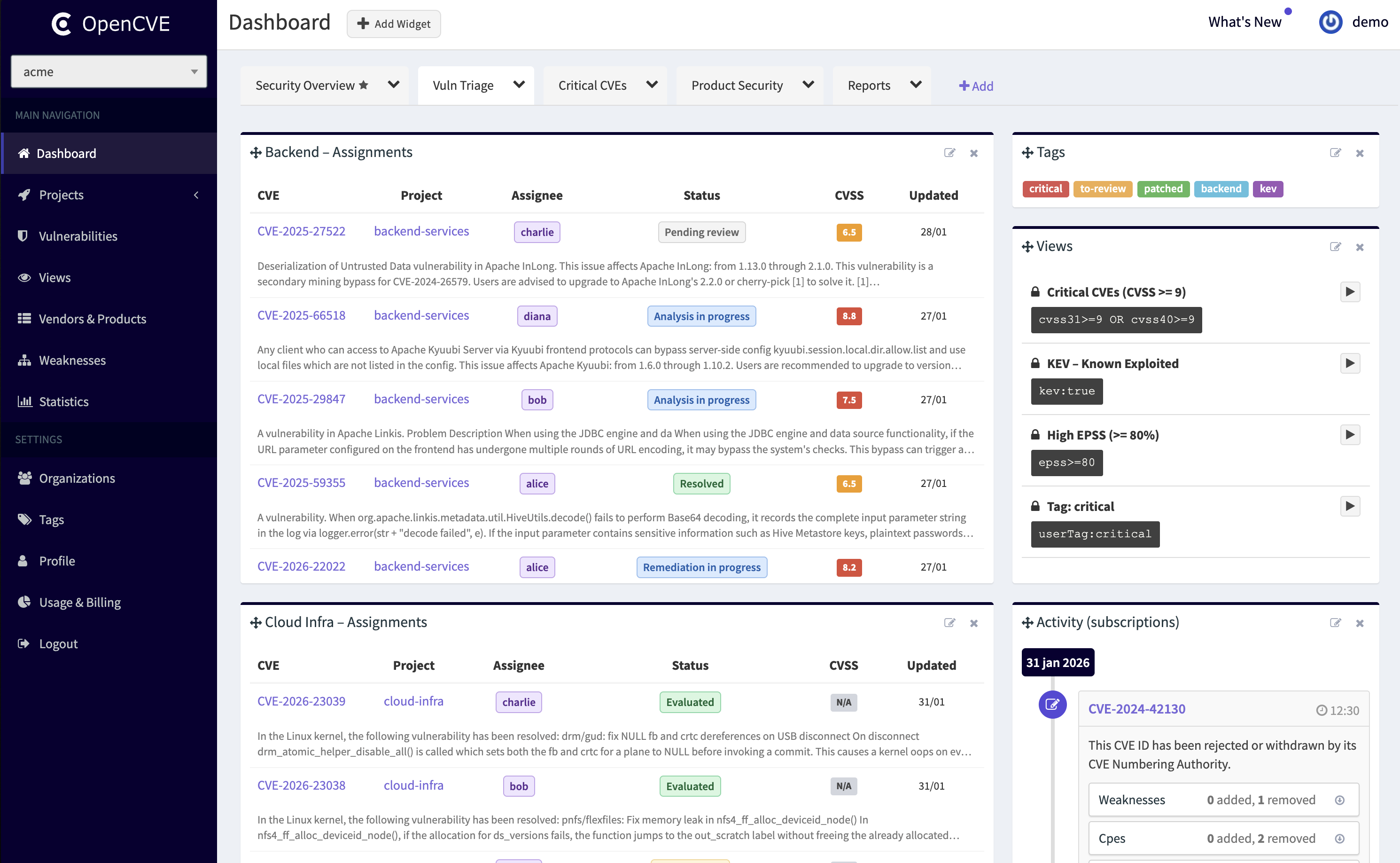
Dashboards allow users to create a personalized homepage populated with dynamic widgets.
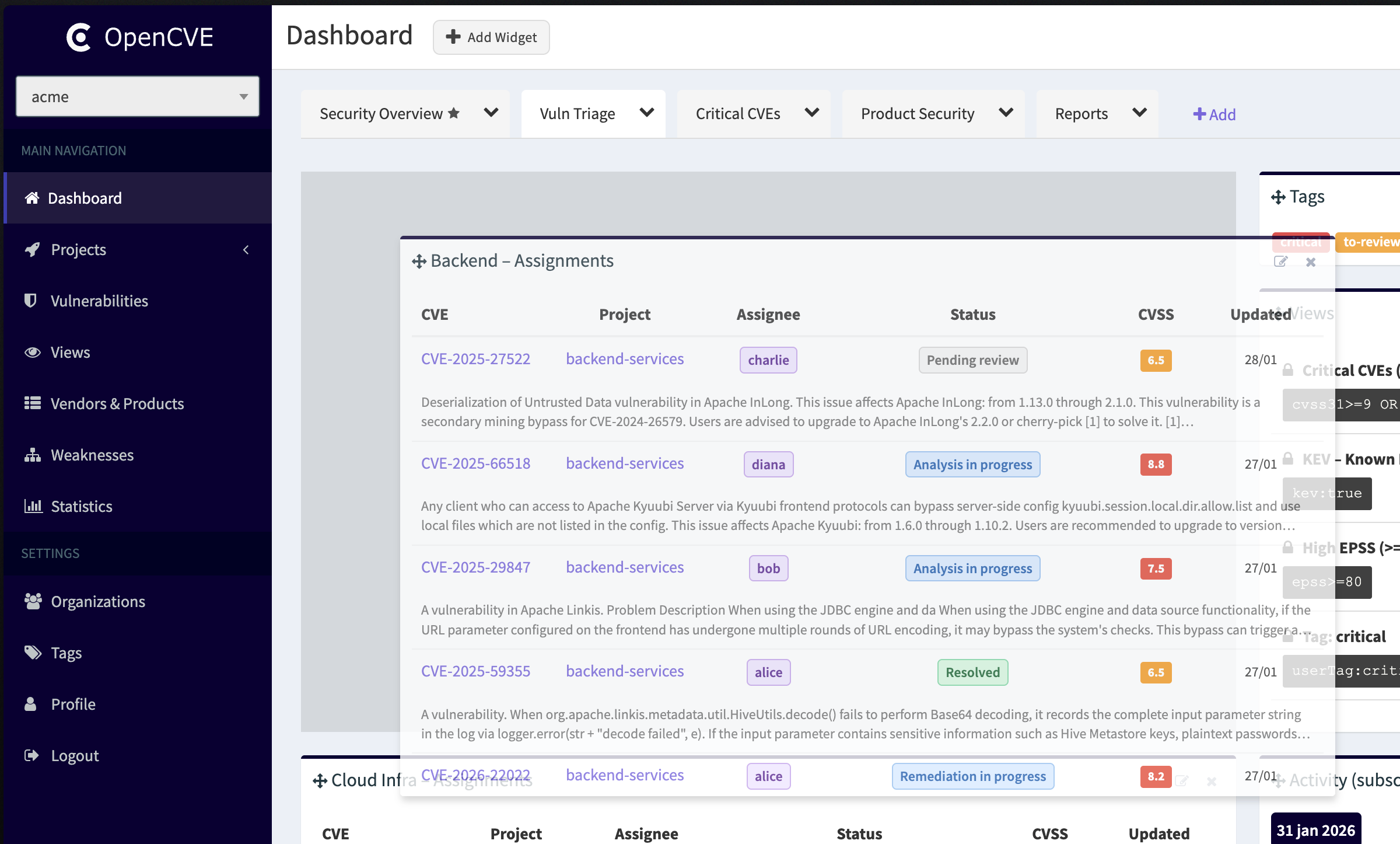
Widgets can be freely positioned, resized, and configured. You can create multiple dashboards to organize your widgets — for example one per theme, team, or monitoring focus — and switch between them depending on the context.
Why Use Dashboards?
Dashboards allow CISOs and security analysts to build a monitoring environment perfectly tailored to their needs.
By combining dynamic widgets, you can:
- Prioritize vulnerabilities that matter most to your organization, such as CVEs with a high CVSS score or impacting critical assets.
- Track the progress of vulnerability management workflows: assign CVEs to users per project, set their status (e.g., analysis, risk acceptance), and use custom tags (e.g.,
to-check,in-progress,validated) to follow your teams' progress. - Monitor project-specific risks by isolating CVEs related to a given customer, department, or application.
- Centralize key information (latest CVE activity, project status, reports) into a single, always up-to-date workspace.
This approach improves visibility, collaboration, and reaction speed, making it easier to focus on what truly matters in your vulnerability management process.
Available Widgets
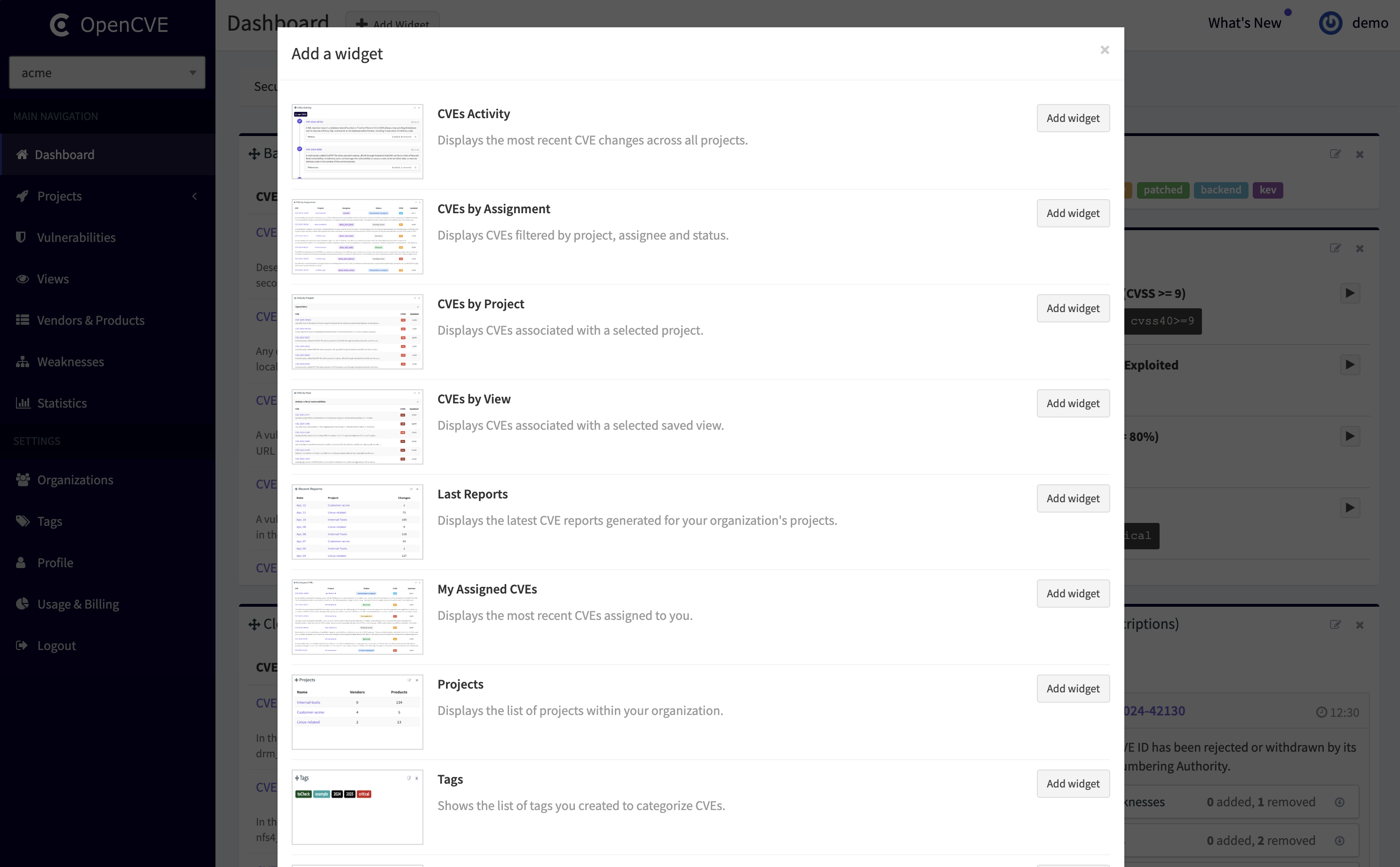
- CVEs Activity: Displays the most recent CVE changes across all projects.
- CVEs by Assignment: Displays CVEs filtered by project, assignee and status.
- CVEs by Project: Displays CVEs associated with a selected project.
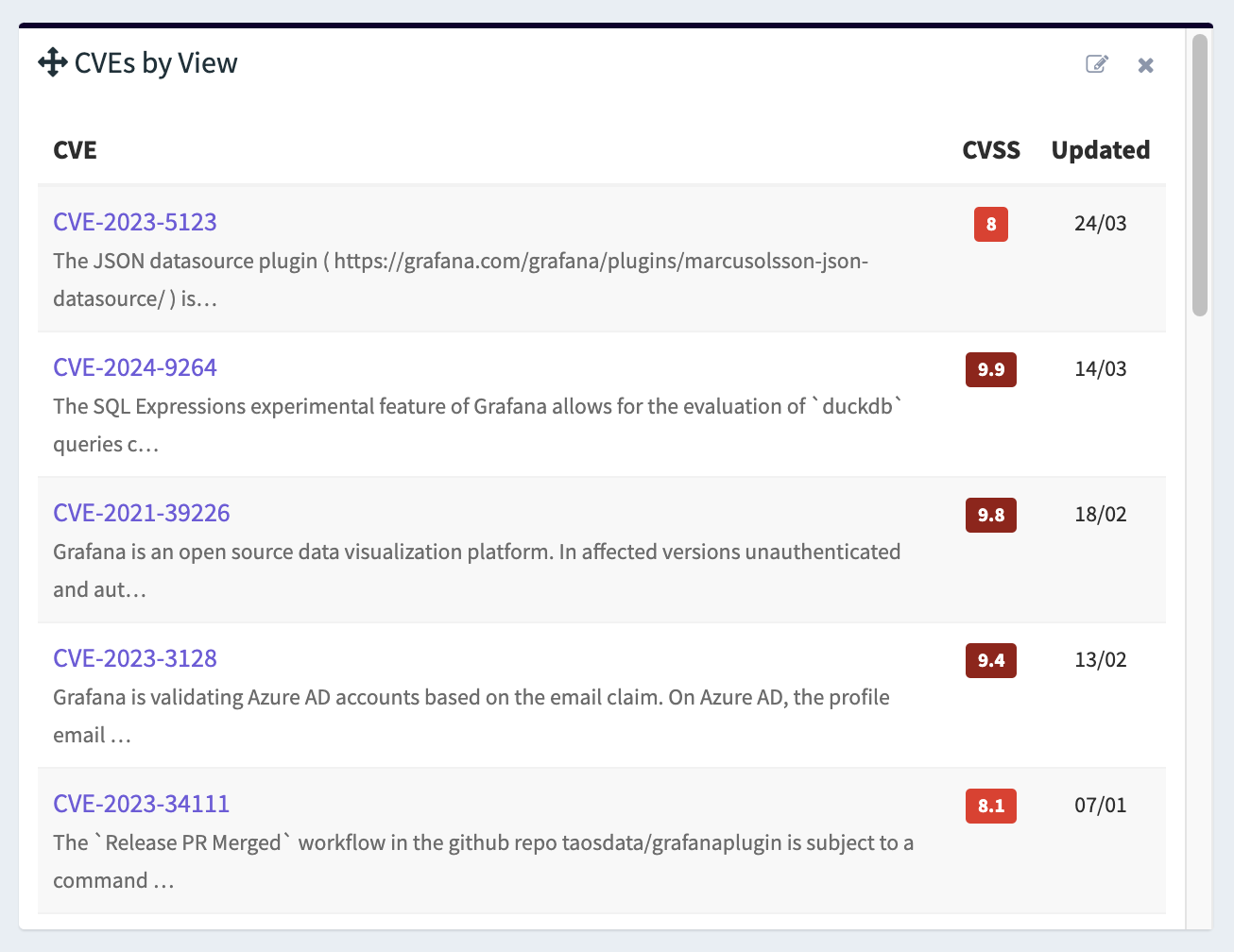
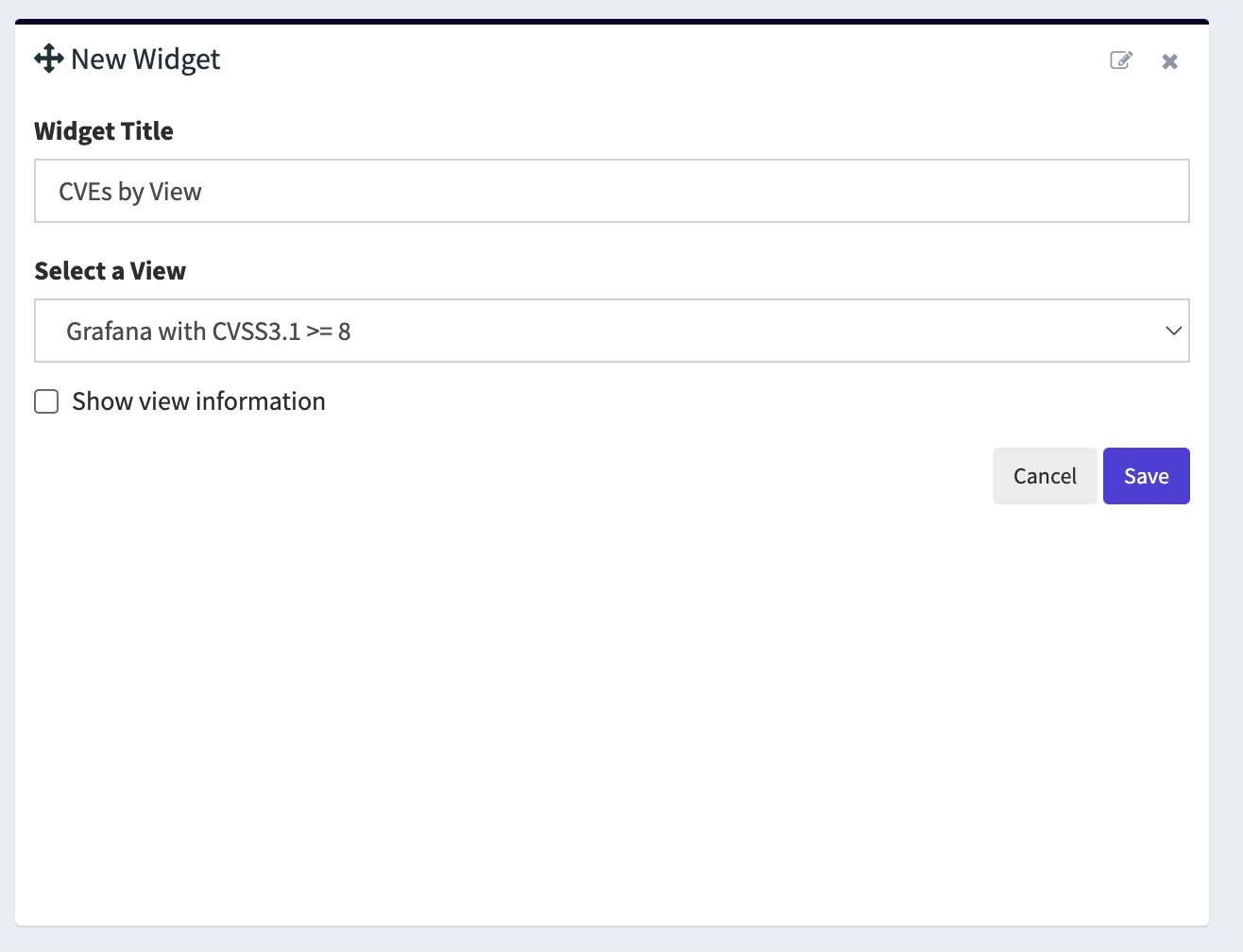
- CVEs by View: Displays CVEs associated with a selected saved view.
- Last Reports: Displays the latest CVE reports generated for your projects.
- My Assigned CVEs: Displays the most recent CVEs assigned to you.
- Projects: Displays the list of all projects within your organization.
- Tags: Shows the list of tags you created to categorize CVEs.
- Views: Lists your private views and your organization's public views.
Create a Dashboard
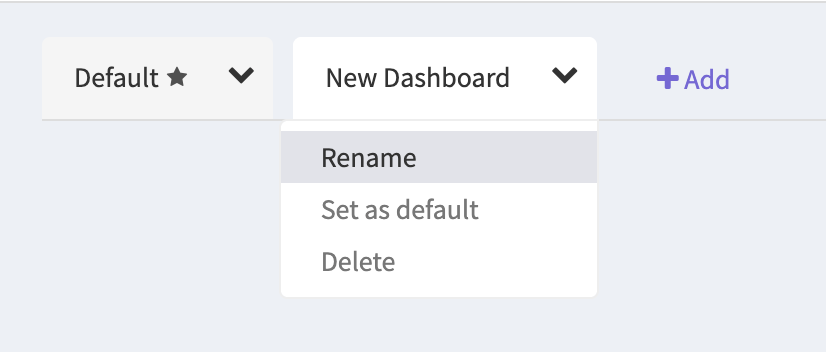
By default, each organization has a default dashboard. Users can create additional dashboards to better organize their widgets (e.g. one for high-priority CVEs, one per project, or one for daily reports).
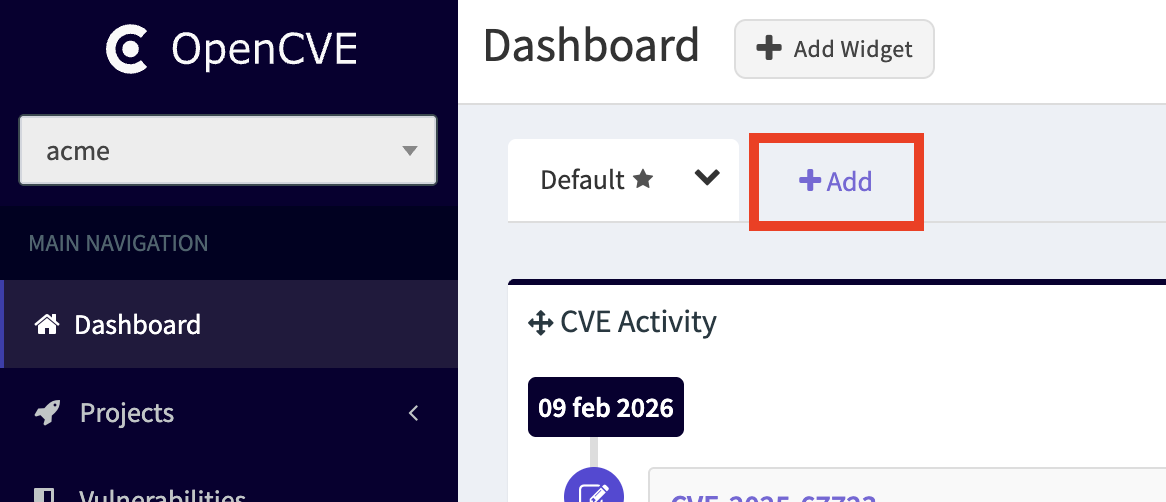
To add a new dashboard, click on the Add button:
Then add your first widget by clicking on the New Widget button:
Each widget has its own configuration settings:
You can now rename your dashboard:
And position / resize your widgets as you need:
Using Views in Dashboard
You can create Views based on advanced queries to filter CVEs based on specific criteria (CVSS scores, vendors, products, tags, etc.).
Example query:
userTags:tocheck AND cvss31>=9 AND vendor:apache
This view can then be added as a widget to your dashboard with the CVEs by View widget.